


WP-CLI (WP Command Line Interface) is a utility for managing WordPress sites that allows you to perform various administrative tasks directly from the command line.
With this utility, you can do the following without using a browser:
- Manage your WordPress site. With WP-CLI, you can update the WordPress core, plugins, and themes; create database backups; clear the cache; and much more.
- Manage content. WP-CLI allows you to import, export, create, update, and delete posts, pages, users, media files, and comments.
- Change site settings. This includes the site URL, headers, permalink structure, and more.
- Manage development. WP-CLI includes commands for working with themes and plugins, such as checking code for compliance with WordPress standards and running unit tests.
- Use WordPress Multisite. WP-CLI lets you manage a network of sites, including creating and deleting sites, managing network users, and more.
WP-CLI is available on both our WordPress Hosting and all other shared hosting plans.
However, since WP-CLI isn’t installed by default on most operating system distributions, it’s usually not available on VPS servers. If needed, you can install it yourself or contact our technical support.
In this article, we’ll show you how to install WP-CLI. We’ll also provide a list of the most commonly used WordPress command-line commands.
Installing WP-CLI
Step 1
First, you need to access the files on the server via SSH. Please note that SSH access is disabled by default on our shared hosting for security reasons and must be enabled separately on virtual server plans with cPanel.
Therefore, please submit a request to technical support, and we will grant you access 24/7.
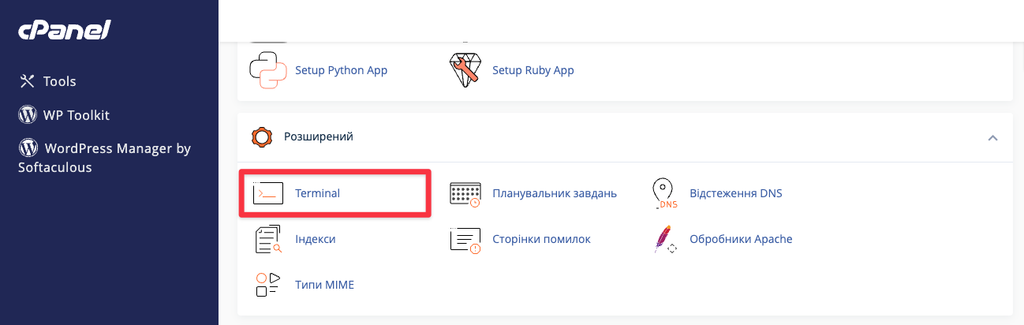
Once we enable SSH on our end, you will see a “Terminal” option in the “Advanced” section of the cPanel control panel.
Step 2
Select the directory where you want to install WP-CLI. Then download the wp-cli.phar file using either wget or curl:
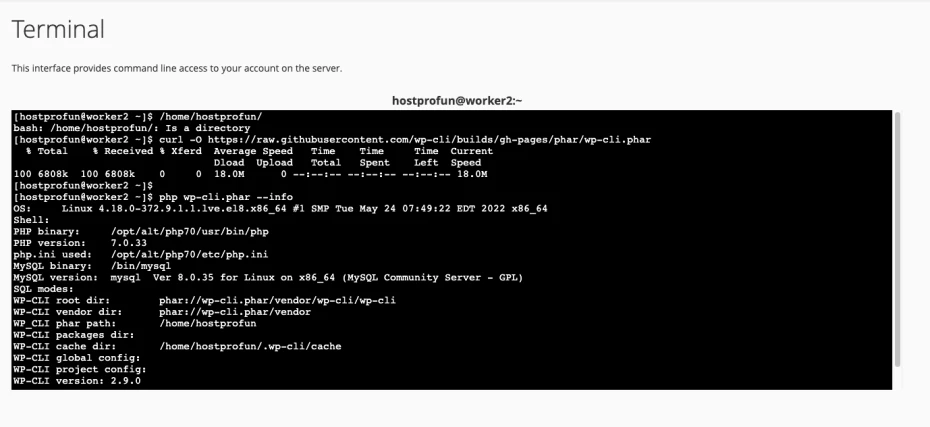
curl -O https://raw.githubusercontent.com/wp-cli/builds/gh-pages/phar/wp-cli.pharThis command will download the WP-CLI file.
Check to see if WP-CLI is working (PHP version 7.0 or higher):
php wp-cli.phar --infoIf WP-CLI was installed successfully, you’ll see something like this when you run it:
Step 3
Next, be sure to set the execution permissions:
chmod +x wp-cli.pharAnd to be able to simply type `wp` instead of `php wp-cli.phar`, create an alias by specifying the local path to the executable file. Open the file in a text editor:
vim ~/.bashrcTo enter edit mode in VIM, press the Insert key and make your changes.
Add the alias at the end of the file in this format:
alias wp=‘php ~/wp-cli.phar’The quotes should enclose the command and the path to the file to be executed. Then save the file.
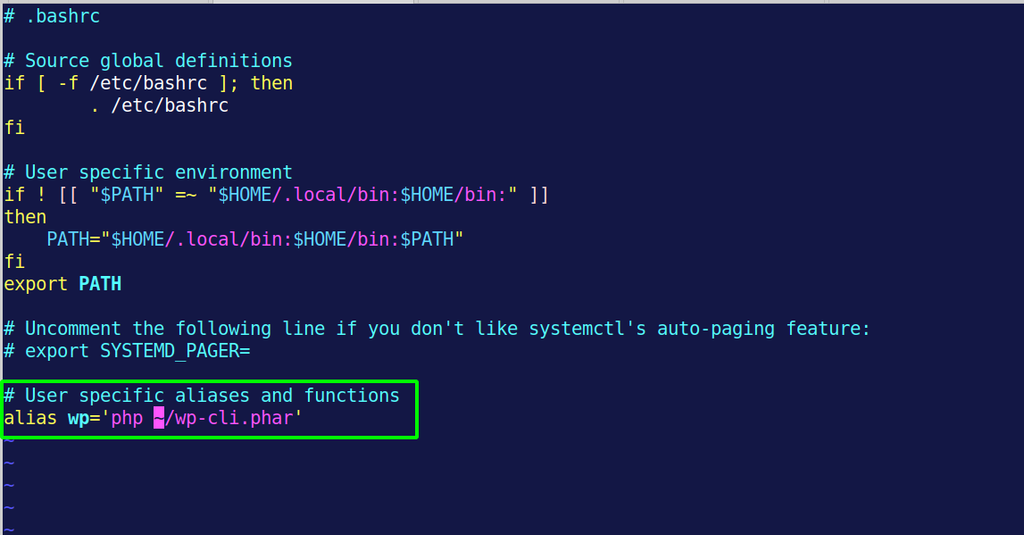
To save your changes and exit, press “ESC,” type “:” (a colon) and “wq,” then press “Enter.”
Step 4
To apply the changes, run the following command:
source ~/.bashrcNow let’s move on to the main commands.
WordPress Core
Checking the current WordPress version
wp core versionThis command will display the current WordPress version.
Updating WordPress
wp core updateThis command will update your version of WordPress to the latest available version.
Backing Up the Database
wp db exportThis command exports your WordPress database to an .sql file.
Working with Media
1. List of image sizes
wp media image-size2. Importing media from local files
wp media import /path/to/your/image.jpgThis command imports a media file from your local computer to your WordPress site.
3. Regenerating Thumbnails
When changing a WordPress theme, resizing thumbnails, or using optimization plugins, visitors may see “distorted” images. In that case, you should regenerate the thumbnails—that is, reset the image dimensions in the main WP settings. You can do this using special plugins (such as “Regenerate Thumbnails”), but using WP-CLI will be much faster since it isn’t subject to HTTP limits and timeouts.
wp media regenerateThis command regenerates all thumbnails for your media files.
4. Regenerating Thumbnails (Missing Only)
wp media regenerate --only-missingThis command will regenerate only the missing thumbnails.
5. Deleting a media file
wp media delete <id>This command deletes an image from the site by its ID.
Working with Plugins
Searching for Plugins
wp plugin searchSearches the WordPress.org plugin directory.
Full List of Plugins
wp plugin listThis command displays a list of plugins installed on the site, including their activation status, whether updates are available, and more.
Updating Plugins
wp plugin update --allThis command will update all installed plugins.
Installing a plugin
wp plugin installActivating a plugin
wp plugin activateInstalling and activating plugins
wp plugin install --activateThe latest version of the plugin from WordPress.org will be installed and activated immediately after installation.
Installing a Specific Version of a Plugin
wp plugin install --version=<version>Deactivating a Plugin
wp plugin deactivateDeleting a Plugin
wp plugin deleteList of redirects
wp rewrite list --format=csvMark a comment as spam / delete it
Mark a comment as spam
wp comment spam 1111Replace 1111 with the ID of the comment you want to mark as spam.
Deleting one or more comments
wp comment delete 1111 2222Example: if you need to delete several comments at once. Replace 1111 and 2222 with their respective IDs.
Working with Posts
Opening a Post in a Text Editor
wp post edit 123123 – Post ID
Creating a Post
wp post create --post_type=post --post_title=‘A sample post’Deleting a post
wp post delete 123123 – ID of the post you want to delete
In conclusion
In fact, you can do almost everything while using WP-CLI in WordPress. The possibilities are vast, and of course, we couldn’t cover them all in this article.
If needed, refer to the official documentation. You can also get a list of all available commands by running `wp –help`.