


What is an admin panel, and what can you do there?
How to log in to the admin panel via your hosting provider
How to access the admin panel depending on your CMS
How to determine your website’s root directory
Any website created using a CMS (content management system) has its own admin panel. This is the primary tool for managing the site’s content and appearance. At the same time, technical changes are usually made directly on the server.
It’s much easier to edit a website through the admin panel than to work with the code. For example, to change how a page is displayed, you can simply edit the theme. On a custom-coded website, however, you would need to manually change the layout and styles.
In this article, we’ll discuss why you need an admin panel, what tasks you can perform through it, and we’ll also show you how to access the admin panel depending on the CMS you’re using.
What is an admin panel and what can you do in it?
An admin panel is an interface for managing a website created using a CMS. It is accessible only to users with the appropriate permissions and is protected by a username and password. An admin can assign roles to other users, such as designating people responsible for content, marketing, or development, and grant them the necessary access rights.
Virtually all changes related to the website’s content and design are made through the admin panel. Specifically, here you can:
- edit sections and the website’s structure;
- add/edit content;
- change the theme template or create your own;
- analyze traffic and user engagement;
- monitor the proper functioning of the website’s technical components;
- manage plugins and modules;
- change basic settings, such as language, time zone, date format, etc.
How to Log In to the Admin Panel via Your Hosting Account
After ordering the desired CMS hosting plan, Hostpro automatically installs the corresponding CMS. In this case, you can access the admin panel from your hosting account dashboard. To do this, in the “Active Products/Services” window, click “Manage,” and then click “Manage” again.
In our example, the site is built on WordPress, so in the panel, select “WordPress Management.” If you have a different CMS, the button will have the corresponding name.
Next, click the “Edit” icon.
In the left menu, click “wp-admin Dashboard,” and you will be redirected to the admin panel.
How to access the admin panel depending on the CMS
The process for logging into the admin panel is generally the same for all CMS platforms. All you need to do is:
- determine which CMS the website was built on;
- go to the login page;
- enter your username and password;
- log in to the admin panel.
If this is your website, you most likely know which content management system it runs on. However, sometimes a website is handed over without technical documentation, and then you’ll need to identify its engine separately. Let’s look at a few ways to do this.
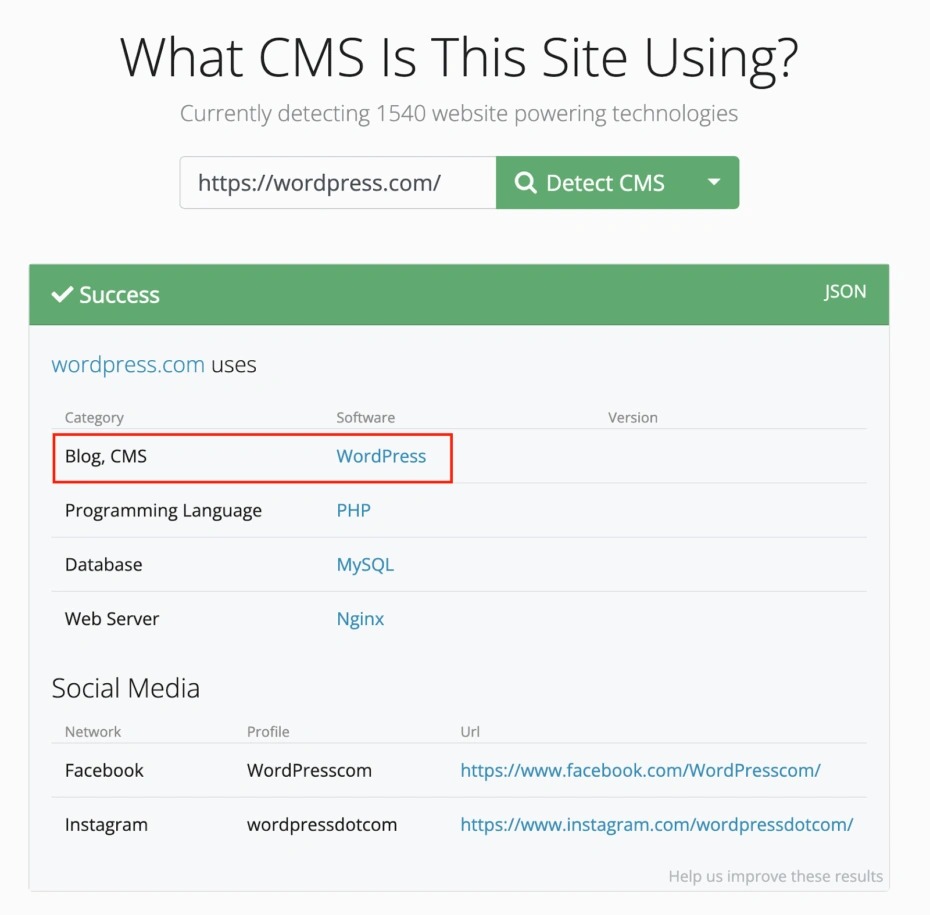
WhatCMS. This is a free online service that helps identify a website’s CMS. Just enter the website’s URL into the search bar and click “Detect CMS.”
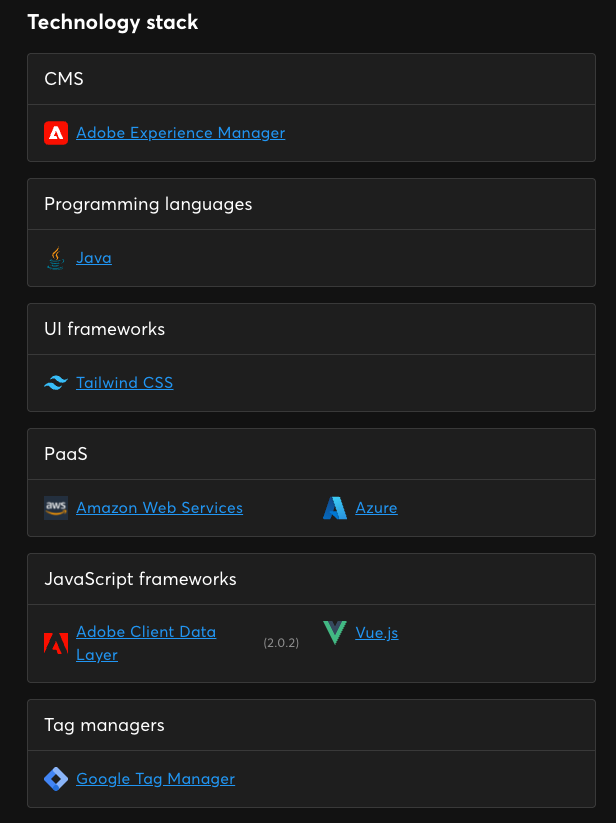
Wappalyzer. A free Google Chrome extension that displays technical information about a website: web server, programming language, plugins, and CMS.
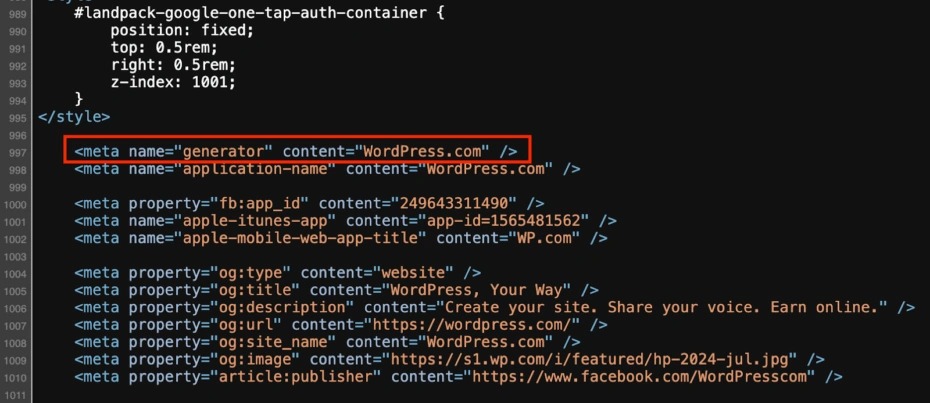
Manually via the code. Go to the website in question, right-click, and select “View Page Source.” Then look for the line: <meta name=”generator” content=”CMS Name” />; this is where the CMS is usually specified.
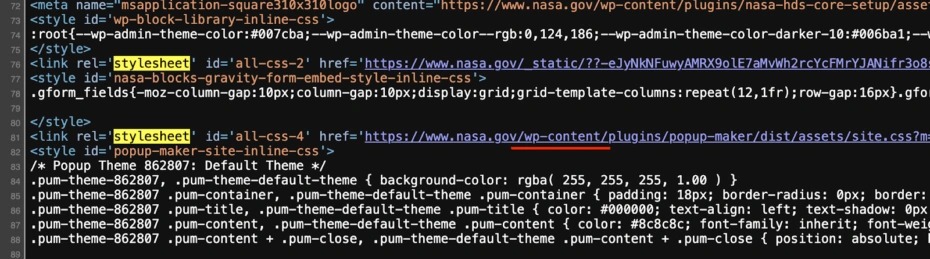
This line may be missing from the code of some websites; in that case, you can look for the CMS in the style sheets, content, or scripts. If you’re using Windows, press Ctrl + F; if you’re using a Mac, press Cmd + F, and search for stylesheet, href, content, or src.
CMSs often leave their mark in lines of code like these. For example, a telltale sign of WordPress is the wp-content folder, and for Drupal, it’s the drupalSettings variable in the scripts.
WordPress
To access the login page, add /wp-login.php to your domain in the browser’s address bar. Then enter your username and password and click Log In. If you happen to forget your password, you can reset it in this same window.
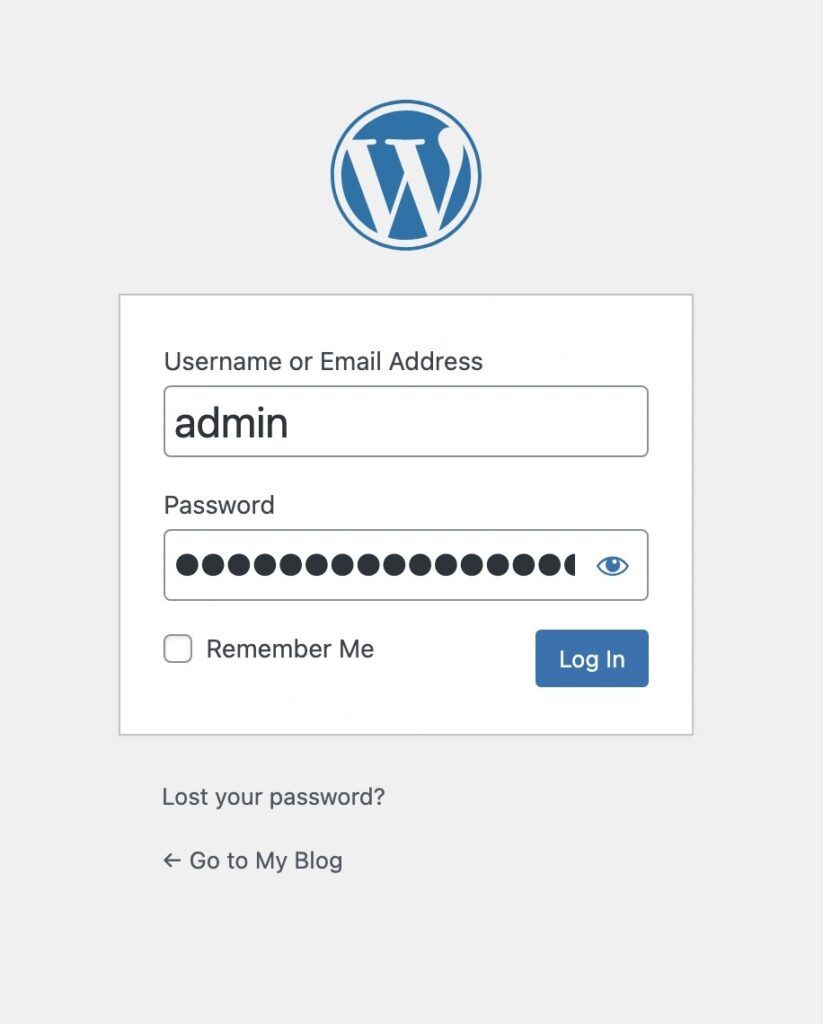
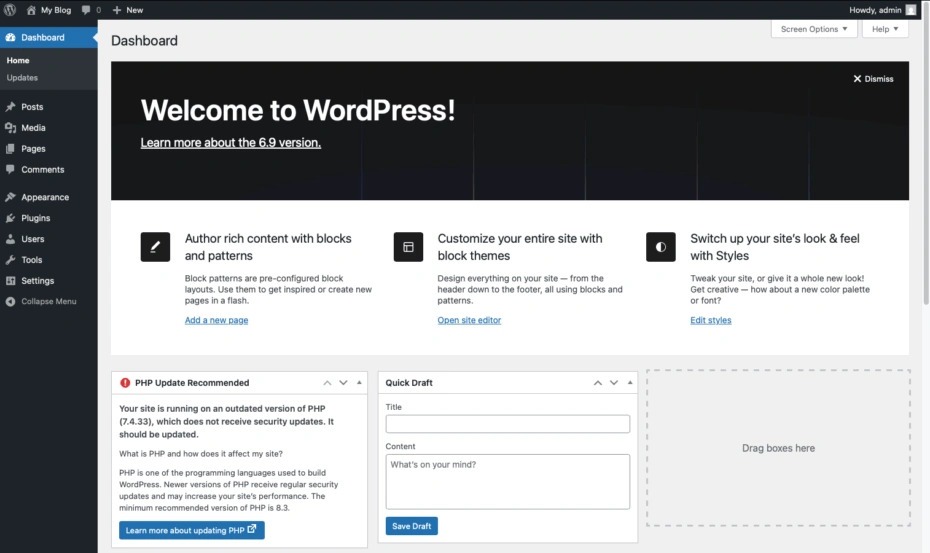
Once you log in, you’ll be automatically redirected to the admin panel. After that, you won’t need to go to the login page—just add /wp-admin to your domain, and the admin panel will open immediately.
To ensure stable access to the admin panel, we recommend using dedicated WordPress hosting. In case of any issues, you can always contact technical support specialists.
Check out this helpful article where we describe 12 steps to clean up your WordPress site.
PrestaShop
In this CMS, the login process is similar but has a few unique features. Here, you need to add the string /adminXXX to your domain, where XXX is the combination of characters set by the administrator during site installation (for example, admin119). adminXXX is the default for PrestaShop, but this string can be changed, for example, to superadmin.
But where do you get this identifier if you didn’t create the site yourself? You can find it in the site’s root directory—we’ll explain this in more detail below.
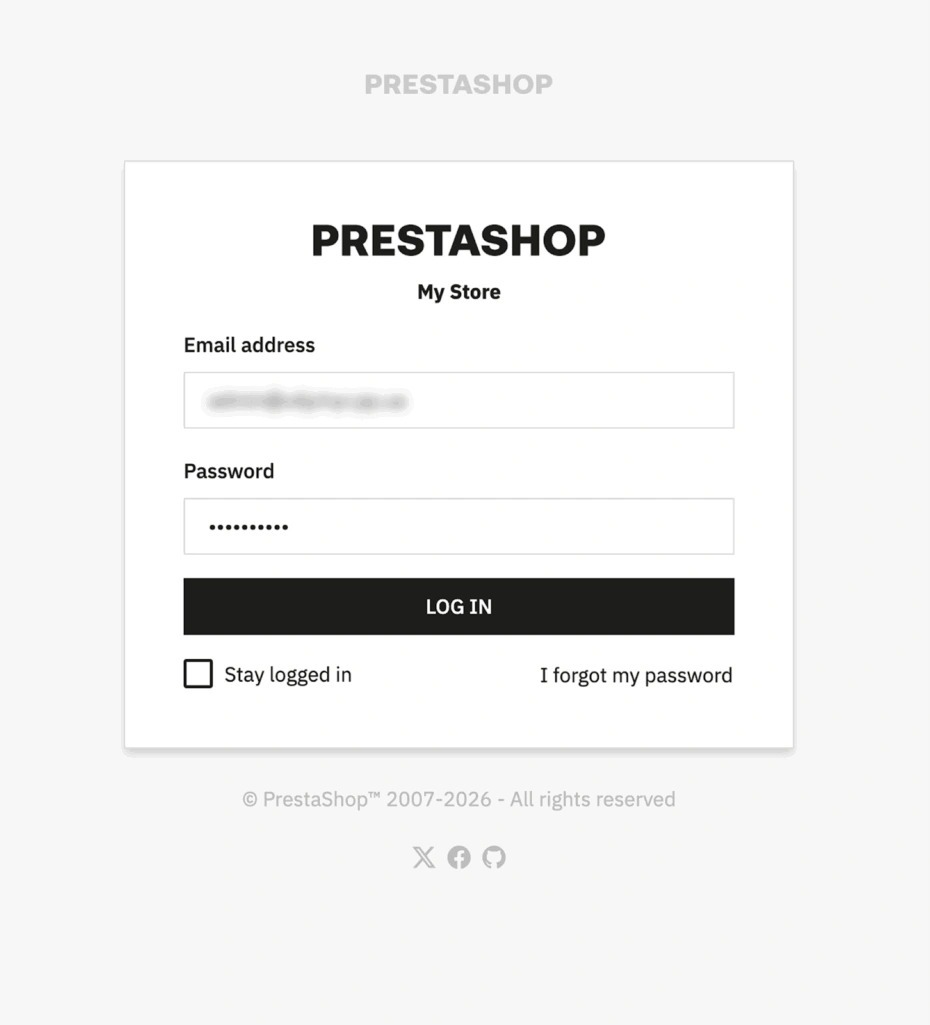
When you go to the PrestaShop login page, you can enter your login credentials, namely your email and password.
Once you are redirected to the PrestaShop login page, you can enter your login credentials, specifically your email address and password.
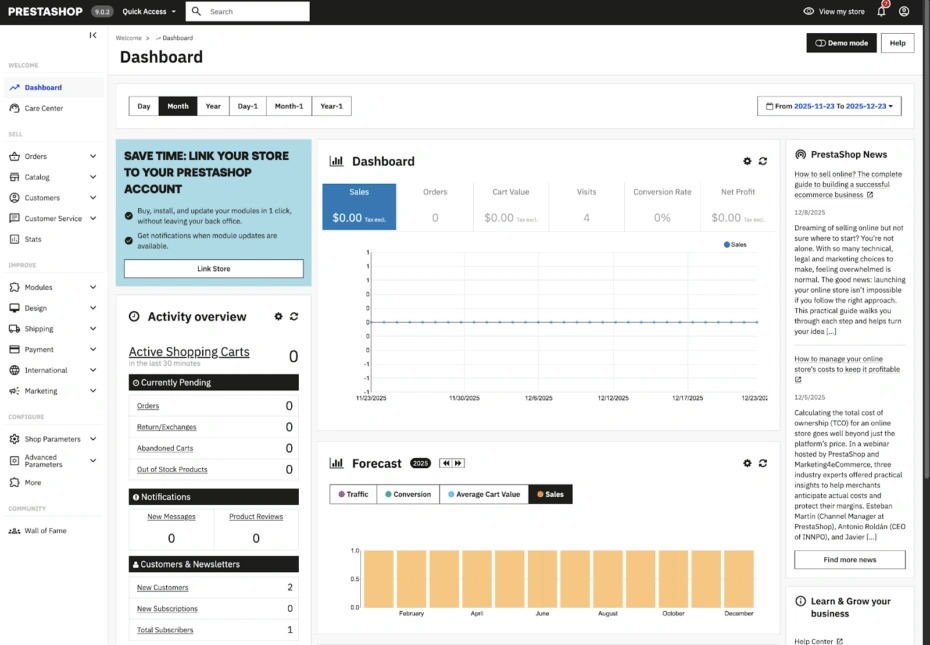
After successfully logging in, the system will automatically redirect you to the admin panel.
OpenCart
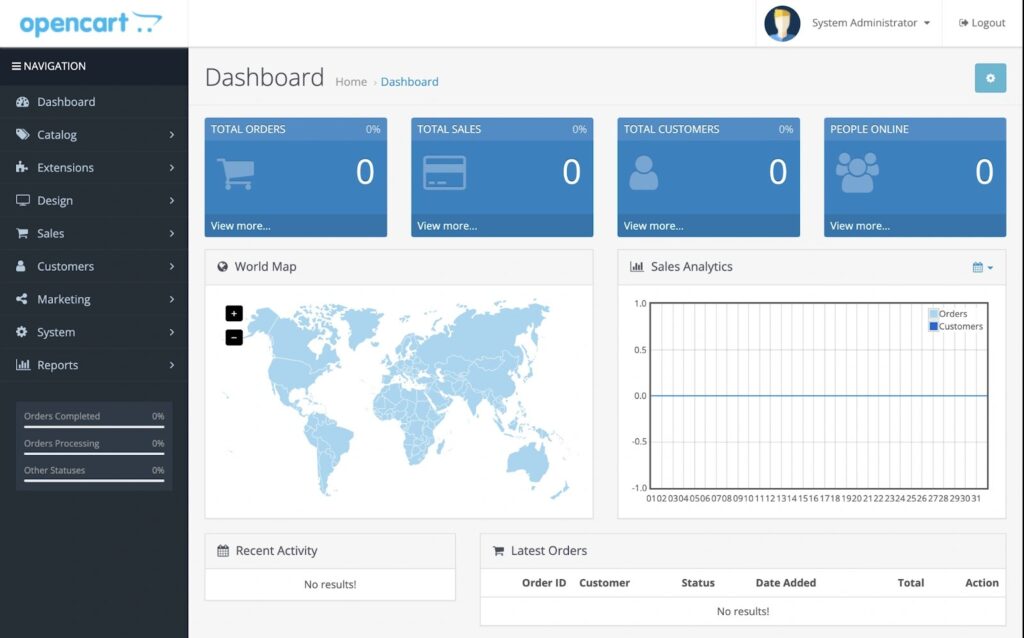
Here, everything is almost the same as in WordPress. Add /admin to the website address, for example, http://example.com/admin, and follow the link. Then enter your username and password and click Login.
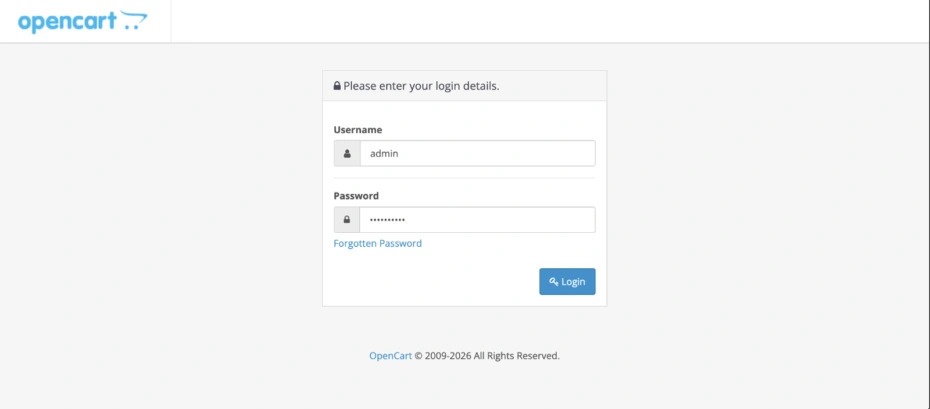
Voilà! Just a few steps and the OpenCart admin panel is right in front of you.
Joomla
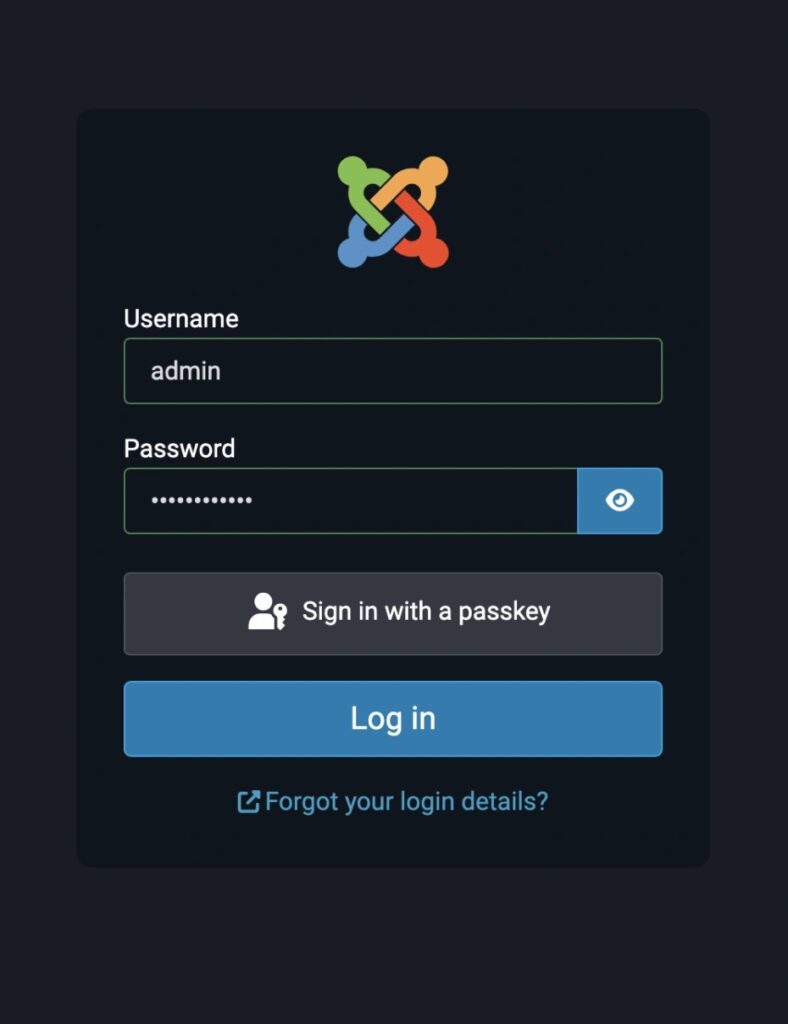
To access the login page, add /administrator to your domain in the browser address bar. Then it’s business as usual: enter your username and password to log in to the admin panel.
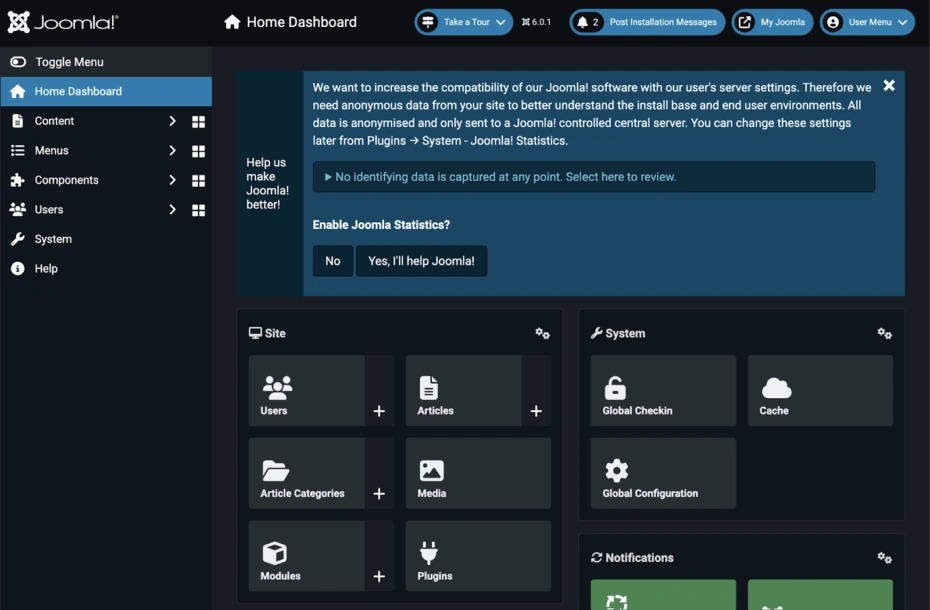
After logging in, you will automatically be taken to the Joomla admin panel.
Drupal
To log in to the Drupal admin panel, you need to add a special path to your domain, which depends on the CMS version:
for version 6 — ?q=admin;
for version 7 — ?q=user;
for versions 8/9/10 — /user/login.
Go to the corresponding address, and the login page will open. Enter your account username and password, then click the Log in button.
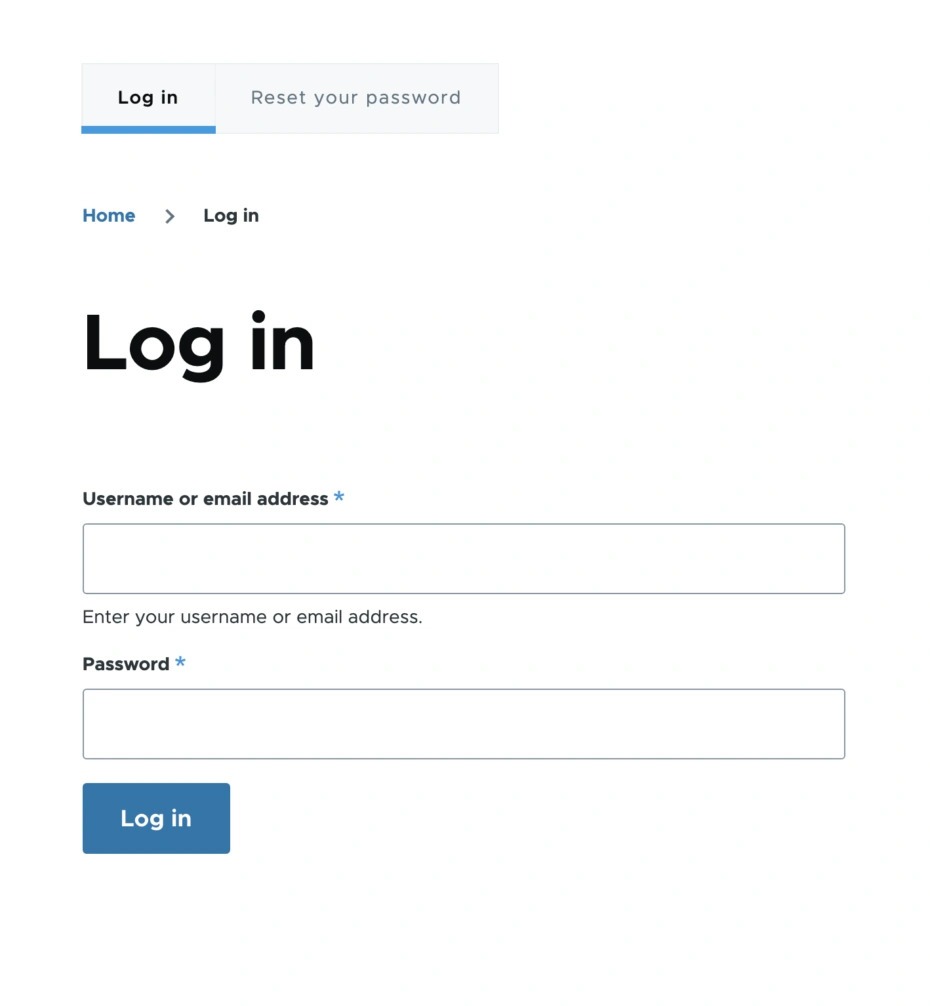
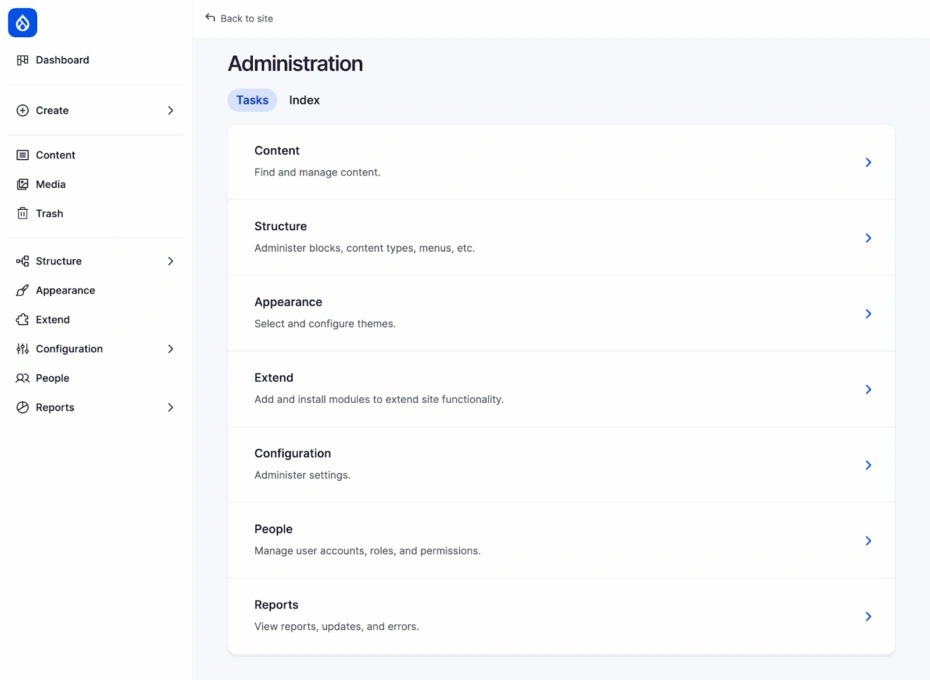
After that, Drupal will redirect you to the admin panel. From then on, you can simply add /admin to your domain—this path leads directly to the admin panel.
Magento
The path to the Magento admin panel is unique for each site, as it is set by the administrator during CMS installation. For example, it might be example.com/admin4ik. If you don’t know the exact path, you can find it in the site’s root directory (we’ll explain this in more detail below).
After clicking the appropriate link, a login window will open. Enter your username and password here and click “Sign in.” As usual, you can also reset a forgotten password here.
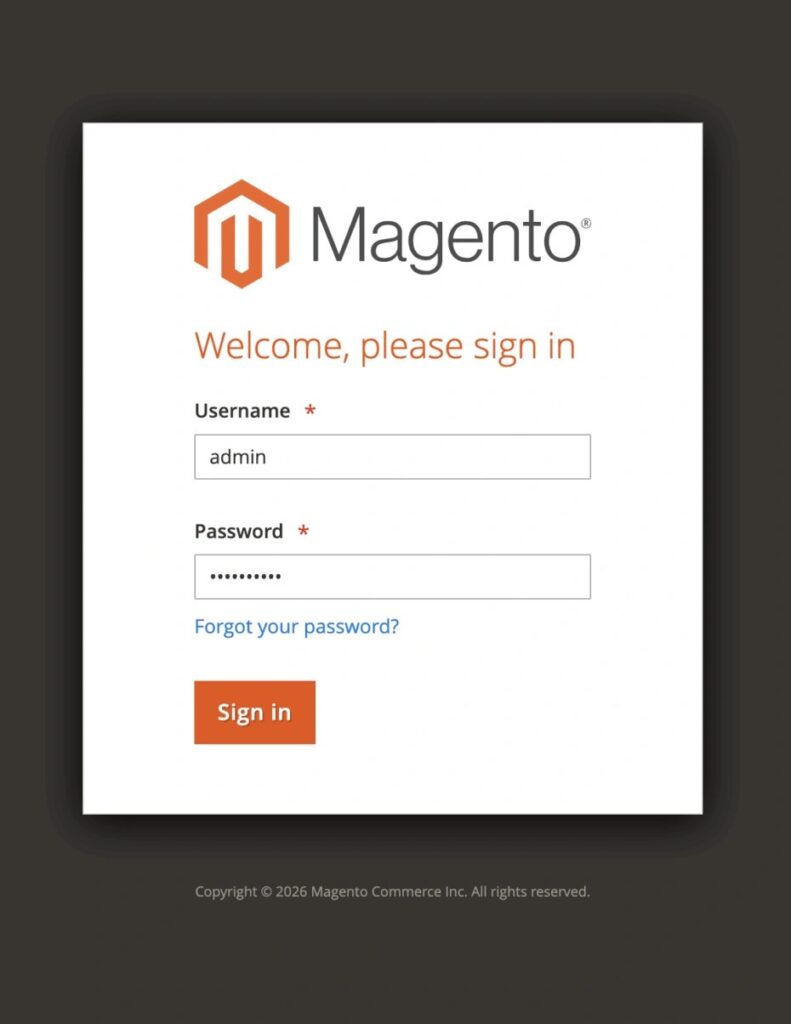
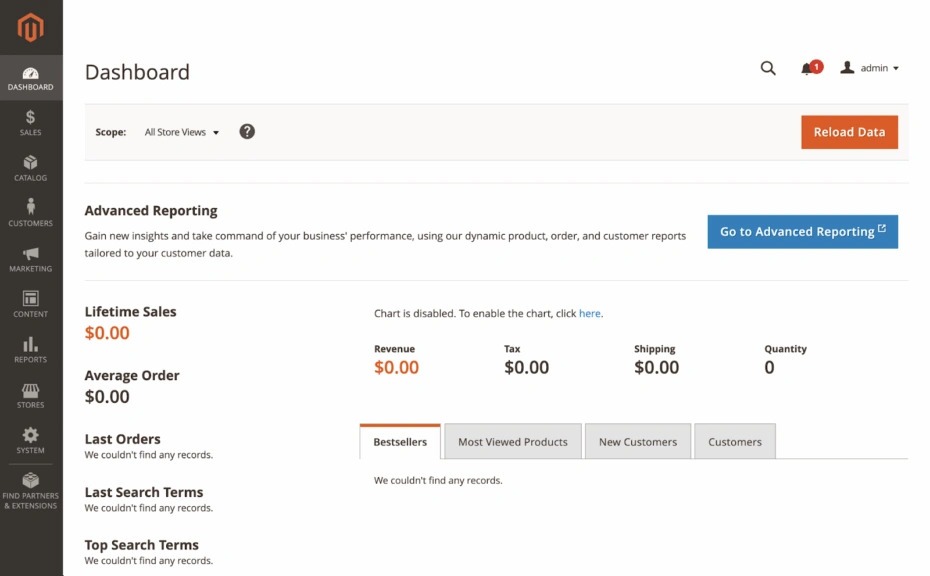
You will then be taken to the Magento admin dashboard.
MODX
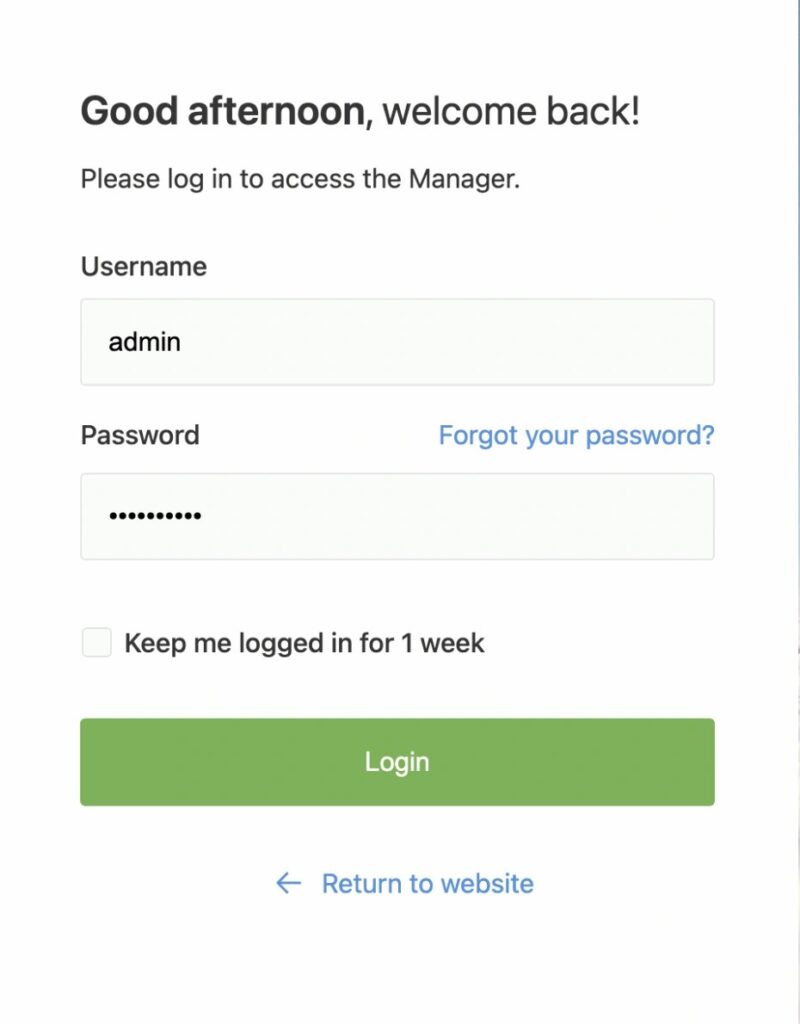
To access the MODX admin panel, simply add /manager to the domain and follow the link. This will open the login page, where you’ll need to enter your login credentials.
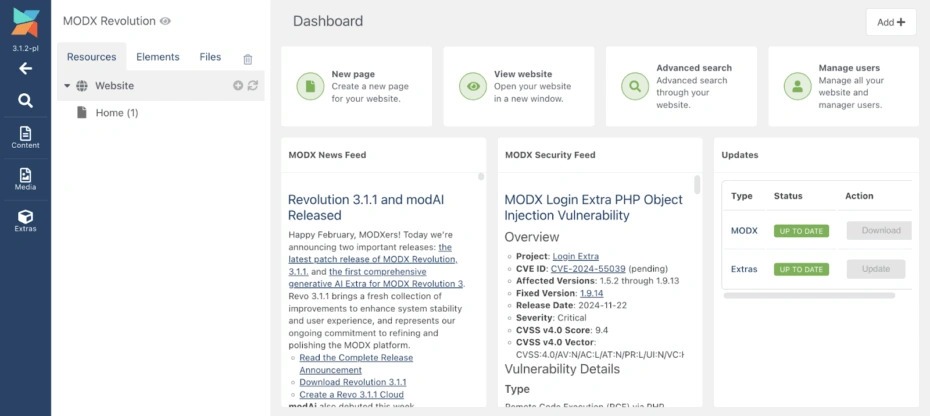
Once you log in, MODX will automatically redirect you to the admin panel’s home page.
How to determine the website’s root directory
We’ve already established that not all CMSs have a standard login algorithm for the admin panel. In some cases, simply adding /admin to the domain is sufficient, while in other systems, the path to the admin panel may be custom. So how do you access the admin panel if the site has been handed over for management without a unique identifier?
It all depends on the control panel used on your CMS hosting. Let’s take a closer look:
cPanel. Here, administrative files are stored in the “Domains” section. Simply click on the root folder to access the file manager, where the website’s root directory is located.
DirectAdmin. Open the file manager and follow the path domains → example.com (your domain) → public_html. It is in this directory that you can find the identifier for accessing the admin panel.
Plesk. In the menu, select “Hosting & DNS” → “Hosting.” Find the “Document Root” setting and make a note of it. On the desired domain, go to “Control Panel” → “Files” and, in the file manager that opens, navigate to the directory you previously saw in the “Hosting” section. That’s where your admin panel ID is located.
CWP. There are two scenarios here. If our domain (for example, example.com) is your main one, go to the file manager and open /home/example/public_html. This is where the administrative part of the site is located.
If our domain isn’t your primary domain, you can check the root directory in the control panel section. To do this, go to “Domains” → “List Domains” and open the file manager.
CyberPanel. It’s simple: open the file manager, navigate to the /home/example.com/public_html directory, and look for the path to the admin panel there.
Finally
Every CMS-based website has its own admin panel. A range of key changes are made through it: from creating templates and editing content to configuring plugins and modules. Therefore, for the website owner and others responsible for it, the admin panel is indispensable.
If you know the website’s engine, you can access the admin panel in just a couple of clicks. Even if the CMS isn’t specified, you can find information about it through services, plugins, the website’s code, or the hosting control panel.
We hope our article helped you quickly find access to the admin panel. And if anything seems unclear, remember that you can always contact our technical support for help.