


What Is a Website’s Root Directory?
Finding the Root Directory in the Control Panel
When working with a website—for example, updating files, configuring the CMS, locating the admin panel, or migrating a project between different servers—a fundamental question often arises: where exactly on the server are the website’s files located? The root directory determines which directory the web server serves from and where its key files are stored. If you don’t know where it is, even a simple task like editing the configuration or checking the CMS structure can turn into a chaotic search through the file system.
The location of the root directory is not universal and depends directly on the hosting control panel. It can vary across environments even with the same CMS, so focus not only on directory names but also on the specific control panel’s logic.
In this article, we’ll take a look at the features of the control panels available to us and learn, step by step, how to find your website’s root directory in each of them.
What is a website’s root directory?
A website’s root directory is the main directory on the server from which the web server serves your website’s files to visitors. This directory contains all the CMS files, templates, plugins, scripts, and configuration files necessary for your website to function.
The web server is configured to “recognize” this specific directory as the starting point: when a user visits your domain, the server looks for the index.php or index.html file in the root directory and displays it. If the files are not located in this directory, the website will not work or will display incorrectly.
Finding the Root Directory in the Control Panel
To work with website files, you need to know where they are physically located on the server. The location of the root directory can vary significantly across different control panels, so the method for finding it depends on which system you’re using.
cPanel
cPanel is one of the most popular and widely used hosting control panels, found on many shared and VPS hosting plans. It has an intuitive structure and a user-friendly file manager; however, the location of the website’s root directory may depend on whether the domain is the primary or an add-on domain.
For the primary domain, the root directory is usually located in the following directory by default:
# /home/username/public_htmlwhere “username” is your username in the system.
The web server serves the website’s files from this directory. If you have only one website on your account, this directory is the root directory.
However, for additional domains or subdomains, cPanel may use a different root directory. When adding a domain, the system automatically creates a separate directory or allows you to specify your own path to the website’s files.
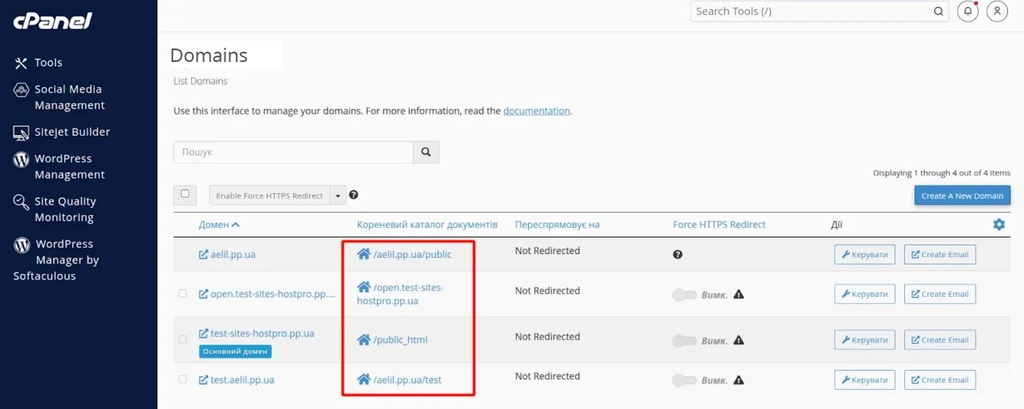
To accurately determine the root directory for a specific domain, go to the Domains section in cPanel. In the list of domains, each one displays a “Document Root” field, which shows the actual path to the website’s root directory. These are the root directories for each of our websites.
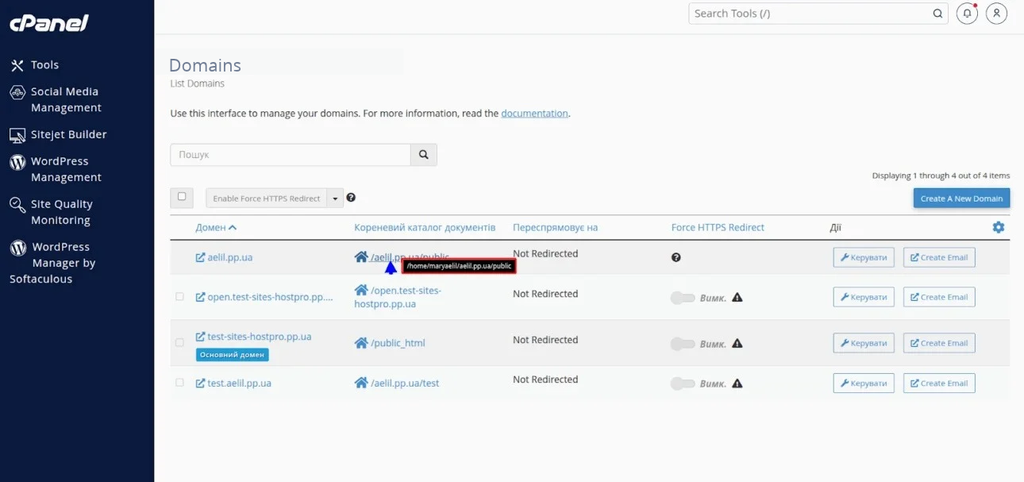
If you need to see the full path to a directory on the server, you can hover your cursor over the “Document Root” value. In the tooltip, cPanel will display the full path to the root directory, allowing you to quickly see where your website files are located.
To navigate there quickly, simply click on the path, and the File Manager will open automatically. You can also open the File Manager manually and navigate to the directory listed as Document Root.
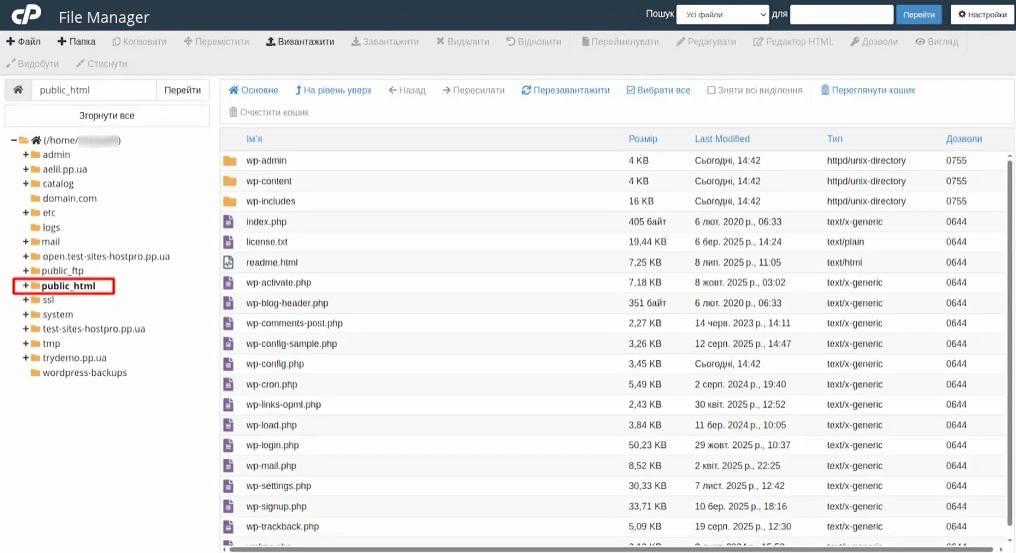
When working with multiple domains in a single cPanel account, always verify the path in the File Manager to avoid modifying the wrong website and causing potential malfunctions. Knowing the full root path is also essential when creating an FTP user, as it lets you restrict access strictly to a specific domain’s files.
DirectAdmin
DirectAdmin is an easy-to-use and fast hosting control panel that makes it convenient to manage multiple websites on a single server. The directory structure in DirectAdmin is slightly different from that of cPanel.
For domains, the root directory is usually located in the following directory:
# /home/username/domains/example.com/public_htmlwhere “username” is your username on the server, and “example.com” is the name of your website.
To locate the root directory for any domain, simply open the file manager in DirectAdmin.
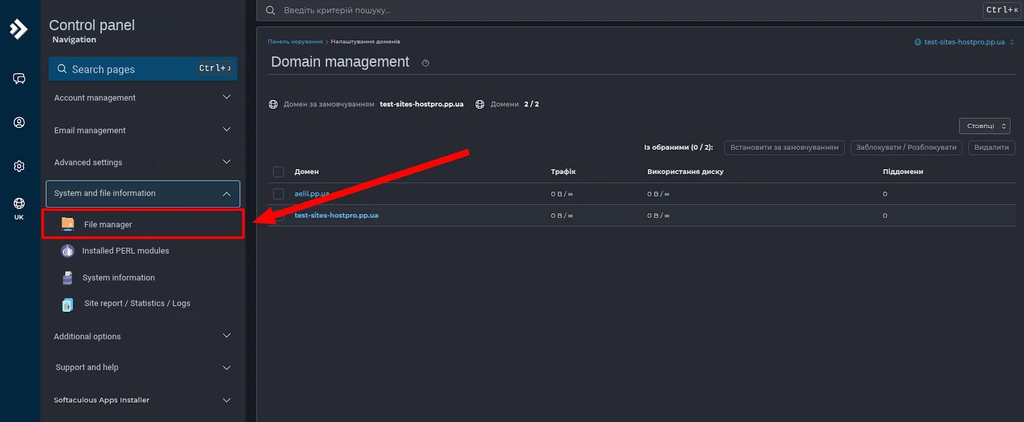
After navigating there, you’ll immediately be taken to the “domains” directory, which displays all the directories named after your websites.
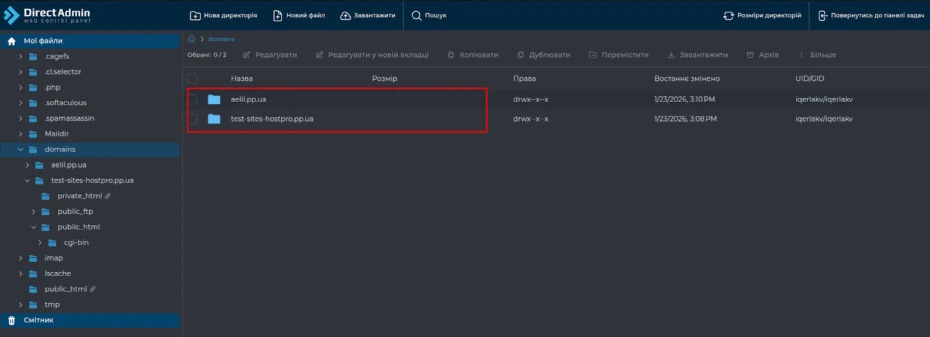
After selecting the desired domain and navigating to `public_html`, you’ll arrive at the website’s root directory.
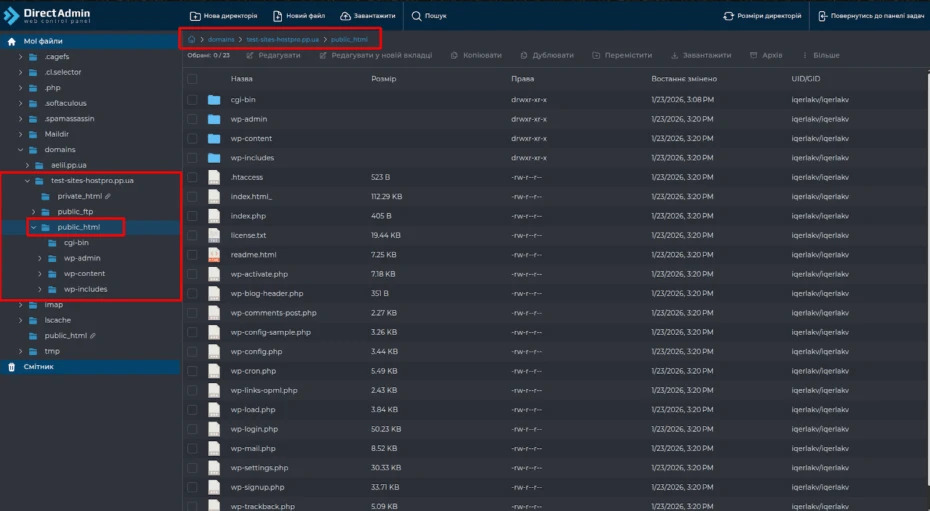
This way, DirectAdmin also makes it easy to navigate if there are multiple domains on the server. Each domain has its own directory within the `domains` directory, which eliminates the risk of accidentally editing files from another website. For additional domains or subdomains, the structure is the same, and the principle for determining the root directory remains unchanged.
Plesk
Plesk is one of the most popular control panels for Linux and Windows servers. It offers an intuitive graphical interface where you can easily find the root directory of any domain and quickly access the file manager or website settings.
To determine a domain’s root directory, go to the settings for that specific domain—in the main menu, select the desired domain and open Hosting Settings.
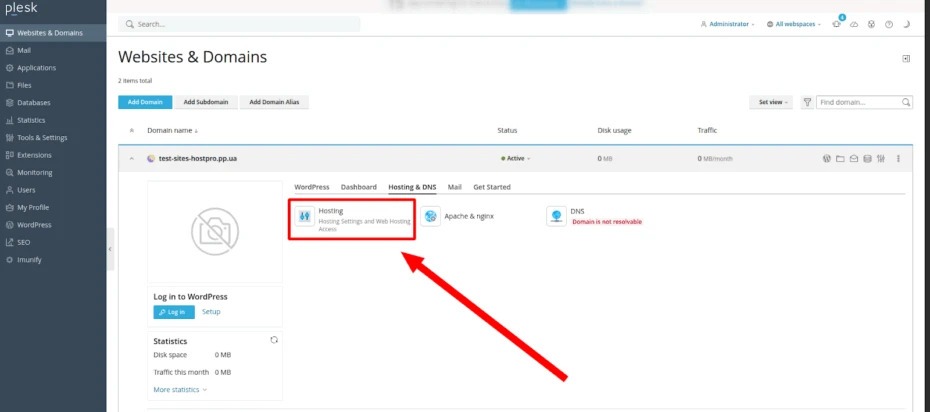
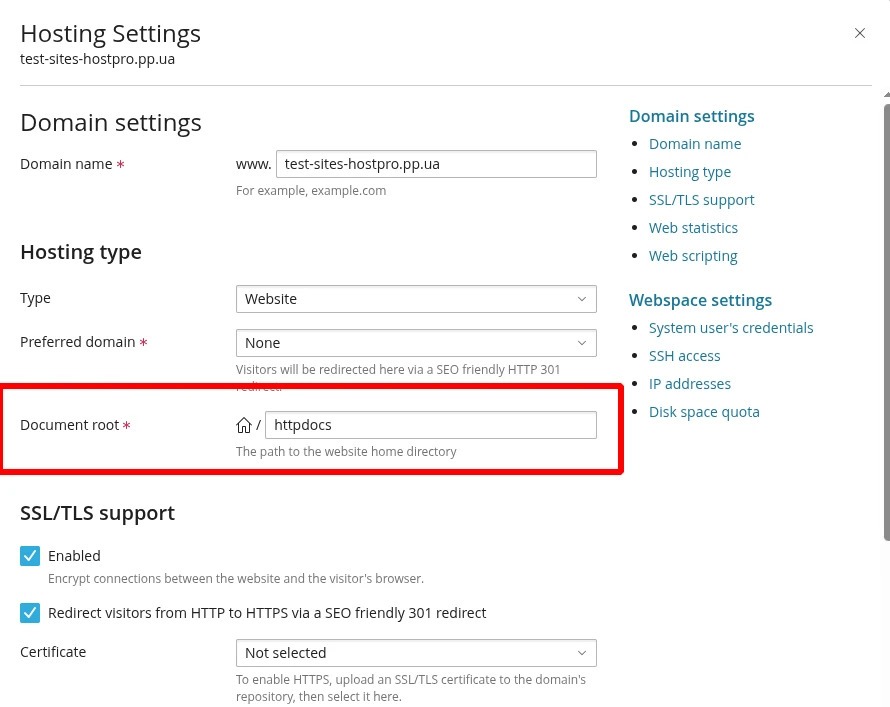
The Document Root field will display the name of the directory used as the root directory for this website. For the main domain, this is usually httpdocs; for additional domains or subdomains, it is the specific directory specified in this field.
There are two ways to open the file manager in Plesk. The first option is to go to the Websites & Domains menu, select the desired domain, and click Files. The second option is to open the Files section in the administrator menu and select the desired domain from the list. In both cases, Plesk automatically redirects you to the domain’s root directory, which simplifies the process and reduces the risk of accidentally editing files from other websites.
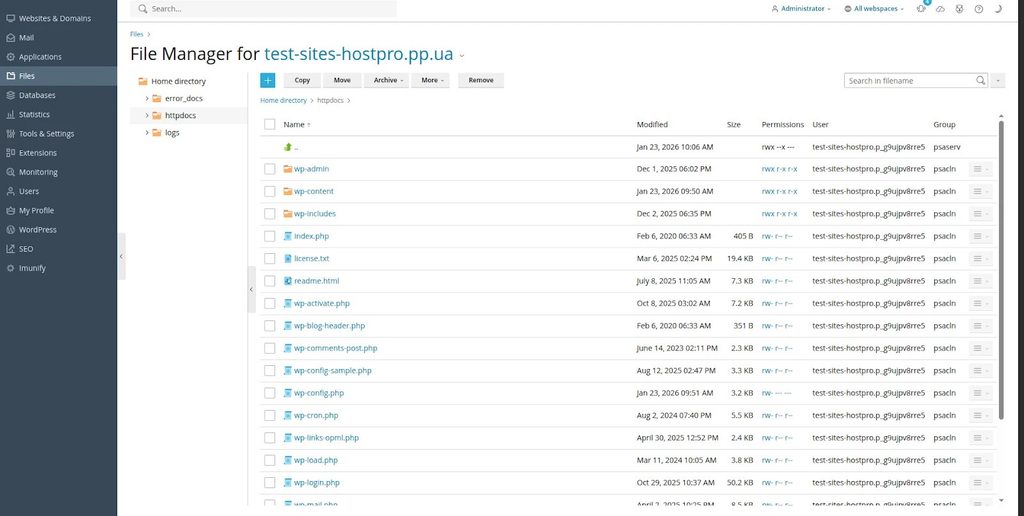
In the window that opens, you can view the directory structure, upload or edit files, and work directly within the desired directory.
In Plesk, the interface typically displays only the name of the root directory, such as httpdocs; however, the server uses a full path. For Plesk Linux servers, a typical full path looks like this:
# /var/www/vhosts/example.com/httpdocswhere example.com is the website’s domain. Use this path for SSH access, FTP configuration, or website migrations.
CyberPanel
CyberPanel is a free control panel based on the OpenLiteSpeed web server, which is ideal for WordPress sites.
The full path to your site’s root directory is usually as follows:
# /home/example.com/public_htmlwhere example.com is your domain.
This is the directory from which the web server serves files to visitors. It typically contains the index.php file, CMS configuration files, and directories with themes and plugins.
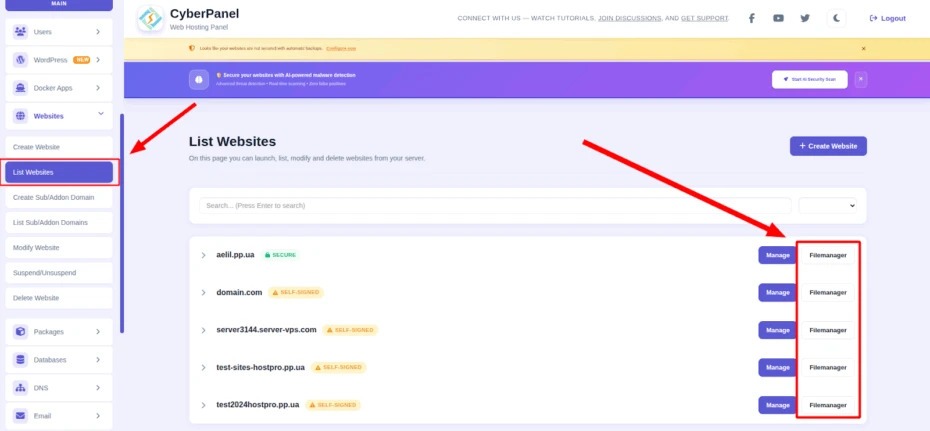
To find the root directory in the control panel, first go to the “List Websites” section on the main dashboard, select the desired domain from the list, and click “FileManager” next to it—the path will open automatically, giving you full access to edit, upload, or delete files.
CyberPanel displays the current path at the top of the file manager, so you can always see where you are, for example, /home/domain.com/public_html.
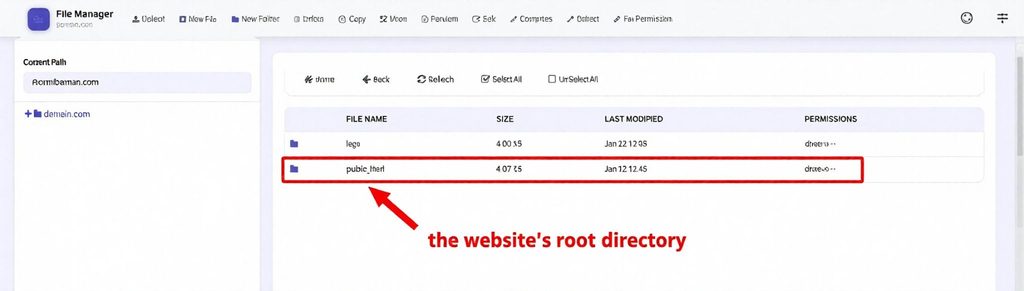
It’s also worth noting that in CyberPanel, each website uses a separate user account and its own directory. This means that files for one domain are isolated from other websites on the server, which reduces the risk of accidental changes or errors when working with files.

That’s why accessing the file manager via the list of websites is the safest way to reach the root directory of the desired domain.
CWP (Control Web Panel)
When working with multiple websites on a server, CWP helps you quickly navigate the file structure of each domain. This free Linux-based control panel offers a convenient file manager and allows you to immediately locate a website’s root directory without having to delve into a complex directory structure.
For the user account’s main domain, the root directory is located at:
# /home/username/public_htmlwhere “username” is your system username.
This is where the main operations of the website take place, and any changes to the files in this directory affect the website’s functionality.
If the domain is not the primary one, CWP allows you to locate the root directory via the Domains → List Domains section.
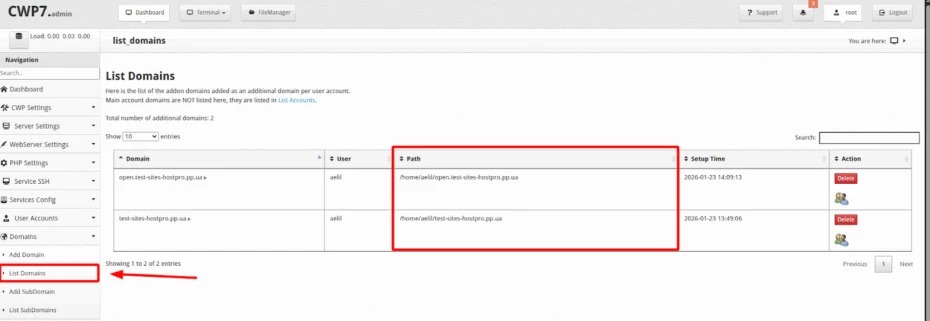
To access the root directory of any domain, open File Manager and manually navigate to the desired directory listed in the domain list.
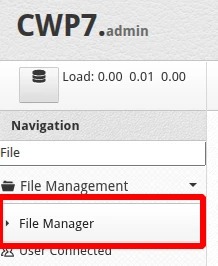
To do this, go to the File Manager section in the user panel, which will open the file manager interface.
The server’s directory structure is displayed on the left side of the file manager. To access the website’s root directory, first open the “home” directory, then select the user directory (username), and next open the directory for the desired domain. For the main domain, go to “public_html,” and for additional domains, go to the corresponding directory—you can check the path to this directory in the “Domains → List Domains” section.
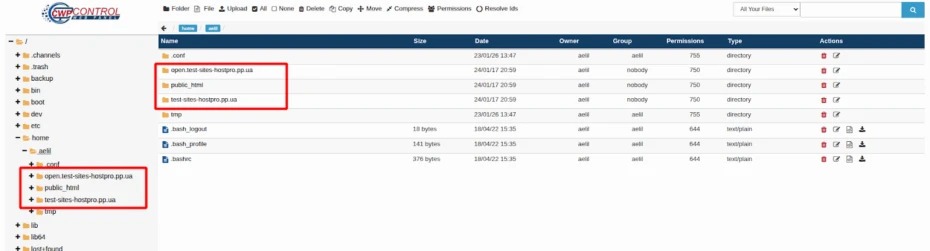
Also consider access permissions and directory owners. In CWP, you can add additional domains under different server users, so each domain can have its own owner and group. This means that when editing files via the file manager or FTP, you need to ensure you have sufficient permissions to modify the necessary files. If permissions are restricted, certain actions—such as uploading files or editing configurations—may not be available.
Conclusion
Regardless of which hosting control panel you use, the principle for determining a website’s root directory remains the same. Knowing exactly where a domain’s root directory is in the hosting control panel lets you quickly navigate the file structure, make changes correctly, and avoid common mistakes when managing your website.