


Table of Contents
Additional Technical Considerations
November is here, and the scent of freshly baked cinnamon rolls wafts through the air. Everyone has their own associations with this rainy time of year, but we know what event brings us all together—the upcoming Black Friday. On this day, everyone’s wallets are at the ready, because brands are rolling out massive discounts that are practically impossible to resist.
No business owner wants to miss the chance to grab a slice of the profits, but before launching a sale, you need to prepare your website. A sudden surge in traffic can cause payment glitches, server overloads, incorrect inventory displays, or even make the site completely inaccessible. The result: disappointed customers, lost trust, and zero profit.
That’s why you need a comprehensive approach that covers both marketing and technical needs. In this article, we’ll explain how to ensure your website remains fast and fully operational during peak traffic.
Increasing Server Resources
When website traffic suddenly grows, the server may struggle to handle the increased demand. If resource usage regularly exceeds 75% of the available capacity, consider upgrading your hosting plan. This will provide additional resources to handle higher traffic volumes and prevent performance issues during promotional campaigns or unexpected traffic peaks.
Ultimately, performance depends on the number of cores and the processor type. For example, a single CPU core in a Cloud hosting plan can equal several cores in an NVMe VPS plan, meaning that the Cloud hosting is more powerful.
Performance also depends on the website’s optimization and structure. For example, a complex WordPress site with many plugins and no caching can overload the server even with just one visitor. Our clients often see a single user visit the site, yet the logs show many concurrent requests. If more users visit at the same time, the site will consume even more resources.
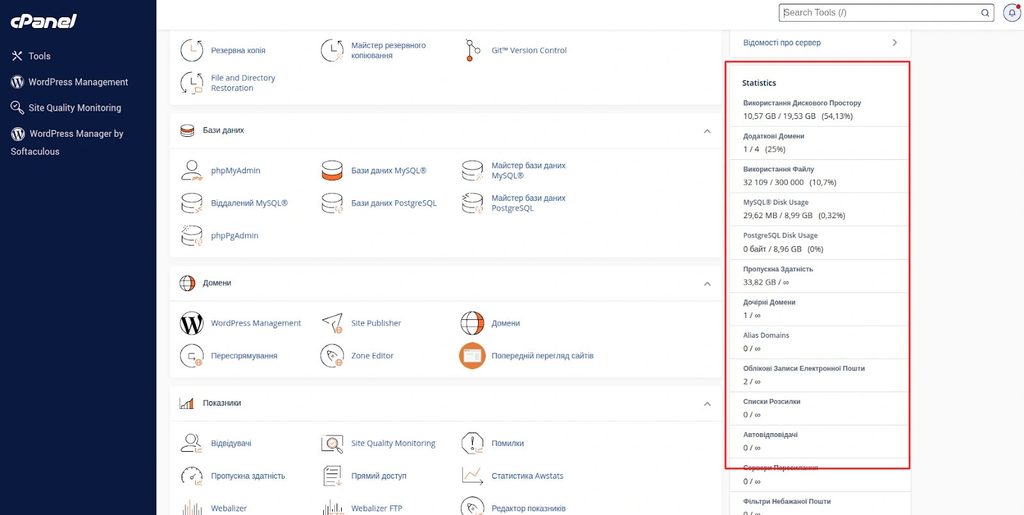
In fact, two things are crucial for stable performance during peak times: sufficient resources in your hosting plan and website optimization. You can check the amount of resources used in the control panel. Let’s look at an example using cPanel:
CPU (processor)
The server’s processor determines the stability of the website’s operation and how quickly it processes concurrent requests. The CPU consists of cores, each capable of processing tasks in parallel. The more cores (vCPUs) there are, the more concurrent processes the system can execute.
Very roughly speaking—because, again, in the real world of websites, a lot depends on optimization, caching, and the specific use case—the following generally applies:
- For small, well-optimized websites, a single CPU is usually sufficient to handle a moderate number of concurrent visitors;
- For small online stores or corporate websites—2 CPUs;
- For medium and large online stores—4+ CPUs.
How can you check how much CPU is included in your plan?
For shared hosting, there is no specific CPU amount; instead, limits are based on the number of concurrent processes initiated by the user or the user’s website.
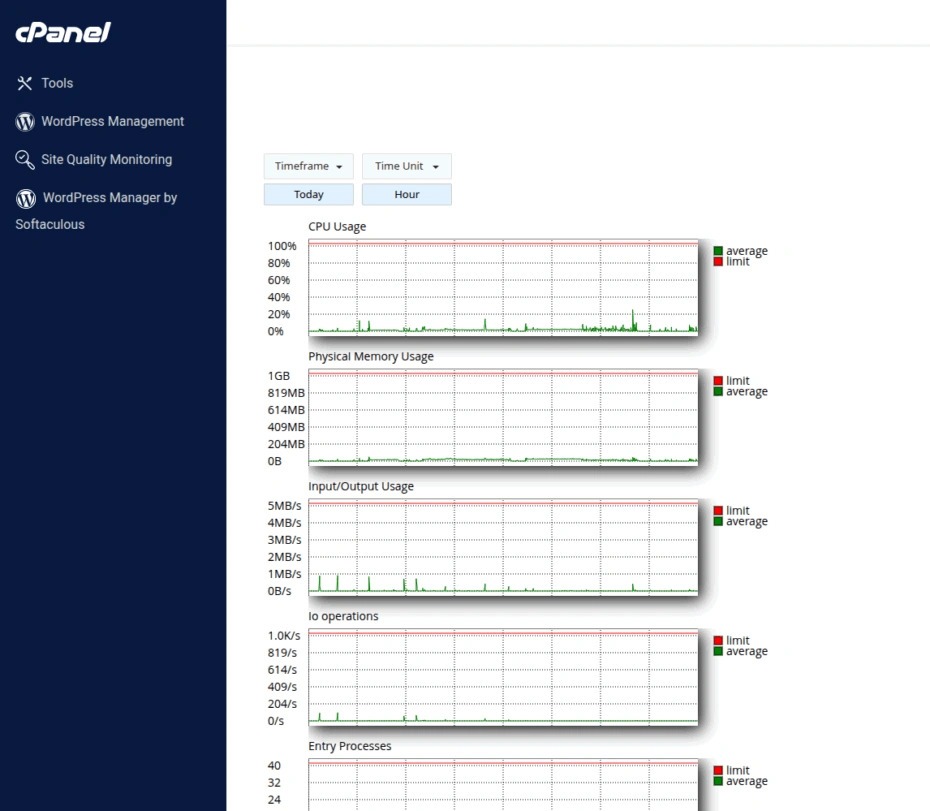
For VPS services, CPU details are listed on the pricing pages, in the Personal Account, and in the control panel. In cPanel, you can view load statistics here:
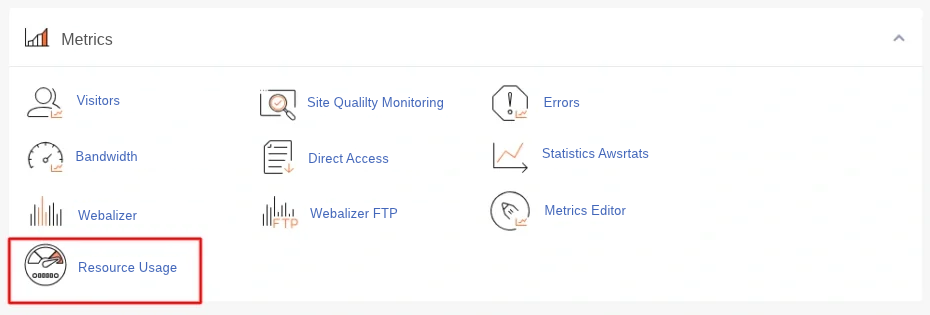
This information is displayed in graph format:
RAM (random access memory)
A server’s RAM is a temporary storage area that the processor uses to handle current tasks. It directly affects the system’s performance and stability under load. RAM is not disk space; it is not used for long-term data storage, since the data is erased when the power is turned off.
More details on the required amount of RAM:
- 1 GB – suitable for static websites with low traffic. An online store running on this amount of RAM will freeze.
- 2 GB – may be suitable for a small online store.
- 4–8 GB – the optimal choice for stores with a moderate number of products, photos, filters, and features such as a personal account, shopping cart, and favorites.
- 16+ GB – the choice for large marketplaces, corporate websites, and portals where more than a thousand users can be online simultaneously.
RAM has a greater impact on server performance than the CPU. In other words, if you compare two servers—one with 1 GB of RAM and 2 CPUs, and the other with 2 GB of RAM and 1 CPU—the one with more RAM will perform better.
Don’t skimp on RAM and try to make do with just 1 GB. RAM is an investment in your website’s stability, so choose at least 2–4 GB.
Drive Type and Storage Capacity
A server drive is a storage device used for long-term data storage. Its type determines the speed of data read and write operations, and this factor is particularly important for an online store. Let’s take a look at the most common types of drives:
- SATA SSD (response time ~ 0.1 ms) – a newer generation of storage devices that are significantly faster and more efficient because they have no moving parts. A good option for medium-sized online stores or small corporate websites.
- NVMe SSD (response time ~ 0.02 ms) – a storage device with a modern data transfer protocol that is fast and stable when processing large volumes of requests. The optimal choice for websites with peak traffic loads.
Note that the type of drive (SATA or NVMe) affects performance much more than the storage capacity itself.
We invite you to read our guide, where we take an in-depth look at the features of NVMe and SATA SSDs and compare their performance. You can find it at this link.
Disk space plays an equally important role, as there must be enough of it to store the website’s content. If there isn’t enough space on the disk, the website will start to slow down or even crash completely.
- 10–20 GB is enough for small websites: business card sites, blogs, promotional sites, landing pages, or online stores with up to 1,000 products.
- 30–50 GB is optimal for medium-sized commercial websites with several thousand products, photos, reviews, and more.
- 100+ GB is for large online stores with complex functionality and high traffic.
We recommend keeping at least 20–30% of your disk space free. Please note that you can check your remaining resources directly on the cPanel homepage. Alternatively, contact our technical support team—they’ll let you know what resources you have left and how much of each. Topping up your resources in a timely manner will ensure you have enough space for logs, updates, and backups during peak traffic periods.
If your website reaches the resource limit of your plan, you’ll need to purchase additional resources or upgrade to a higher plan. For example, on Linux Hosting and Pro Linux Hosting, an additional 10 GB costs $5/month. With the new plans, you cannot purchase additional resources—you must upgrade to the next plan.
If your site is on shared hosting, you’ll need to request that your hosting provider migrate it to a VPS. During the migration, the site will continue to operate normally; visitors won’t even notice any changes. On a VPS, you can only purchase additional RAM and CPU separately. If you need more disk space, that’s only available on the next higher plan.
We have detailed instructions on switching from shared hosting to a VPS—you can find them here.
Website Optimization
While upgrading your hosting plan gives you more resources, you can often improve performance for free. Let’s start with the basic foundation of any optimization: caching.
Implementing Caching Technologies
Caching stores data so it can be accessed more quickly in the future. When a repeat request comes in, the server doesn’t need to perform all the operations every time; it can simply access the cache and return the result immediately. This significantly reduces the load on the server and speeds up request processing.
Among the most popular caching methods are:
OpCache – stores the compiled code of PHP scripts so it doesn’t have to be recompiled every time. It speeds up script execution and reduces the load on the server. Enable OpCache per hosting plan, but it depends on the control panel. For example, in cPanel on a shared hosting plan, here’s how to do it:
- Go to the cPanel homepage;
- Type “Select PHP Version” into the search bar;
- Select the PHP version you’re using and click “Apply”;
- Check the box next to “opcache” in the list of extensions.
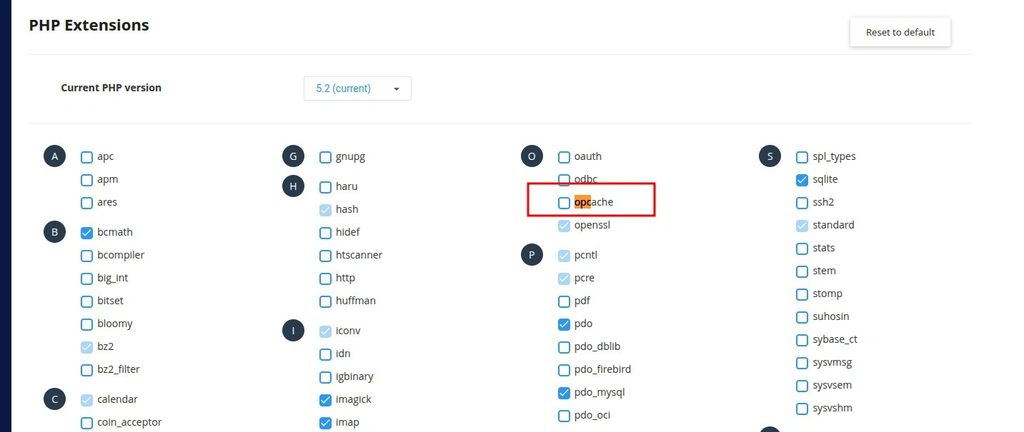
On some shared hosting plans, this extension is installed by default. To find out if it’s installed on your account, please contact our technical support.
Redis or Memcached—these are used for caching sessions and small portions of a page’s HTML code. They’re especially useful for online stores, handling high concurrent traffic. We have a guide on setting up object caching for WordPress using these technologies.
LiteSpeed Cache – a plugin that caches website content at the server level. It stores and serves static versions of pages so they don’t have to be generated every time. By the way, we have a guide on setting up LiteSpeed Cache for WordPress.
CMS-level caching involves plugins for WordPress, OpenCart, Joomla, and other content management systems.
Caching is necessary to reduce the load on server resources. This way, allowing each request to process faster and increasing total server throughput. For example, a store with over 10,000 products might take 3–5 seconds to load, but with Redis and OpCache, it can load in just 1–1.5 seconds—even during a sale.
Code Optimization
If a website’s code is bloated, it negatively affects its performance. This is due to unnecessary functions or overly verbose code: something that could be implemented in three lines ends up taking ten. Even if your server has top-notch hardware, unoptimized code will drain its resources and slow down the website.
What to do in such cases:
- Remove unnecessary features—check your CMS for plugins you don’t use but that are active and consuming resources.
- Minimize code—optimize HTML, CSS, and JavaScript; this will reduce file sizes and speed up page loading.
- Optimize SQL queries—they consume a lot of resources and take a long time to execute. Minimize the use of JOINs, avoid subqueries, configure indexes on large tables, and so on.
- Implement lazy loading—this is an optimization technique where only the content the user interacts with is loaded. To load other files, the user must scroll to them.
- Use a CDN for static files—they can be loaded from CDN cache servers, while your origin server handles dynamic files. This helps distribute the load evenly across the server.
If you have a developer, delegate all these tasks to them. Otherwise, start with the basics that can be implemented without technical knowledge. Specifically, review and disable extensions, install a caching plugin, and set up Lazy Load and a CDN. If this proves insufficient, you’ll need to upgrade to a more expensive plan.
Additional Technical Considerations
Increasing server resources and optimizing your website are essential steps you can’t do without when preparing for peak traffic. However, don’t overlook these key technical factors that you shouldn’t overlook either.
Security
Major sales and promotional events attract not only customers but also attackers who hope high traffic will expose a website vulnerability. During this time, the risk of DDoS, phishing, brute-force, and other attacks increases significantly. If an attack occurs, it’s worse than if the website went down because it lacked resources.
What to Look Out For:
Cloudflare
Connect this or another CDN service that has built-in protection. It detects malicious traffic and blocks it before it even reaches the server. Cloudflare is the easiest way to protect WordPress or OpenCart websites.
We covered how to protect your website with Cloudflare in more detail in a previous article.
Protection Against SQL Injections
This is an old but fairly common method of hacking attacks. An attacker attempts to inject malicious code into input fields on a website to gain access to the database. To prevent this, add a CAPTCHA, minimize using dynamic queries, and specify security rules in the .htaccess file.
Cookies and CAPTCHA
Use a CAPTCHA to restrict bots from accessing the site. For example, you can integrate Google reCAPTCHA v3 and set it up before registration and product ordering. Additionally, extra verification of cookie sessions will help track suspicious activity and prevent bots from endlessly generating requests to the server.
Email Protection
Spammers use various tactics, such as flooding your inbox with mass emails or inserting malicious links and trying to trick you into clicking them.
Special anti-spam systems filter incoming messages and send suspicious emails to the spam folder. You won’t need to manually check every email (of which there may be quite a few during a promotion); only safe messages will remain in your inbox. If necessary, you can review which requests were blocked.
Protecting Contact Forms
Spammers often use contact forms to flood inboxes. These forms allow them to bypass email filters, since messages sent through them go directly to the company’s email. There are also cases where spammers insert links to their own websites into the “Comment” field to build backlinks, as well as test forms for SQL injection, XSS, or other types of injection attacks to compromise the website.
To prevent this, install CAPTCHA and anti-spam plugins, such as Akismet or Antispam Bee. Additionally, you can add honeypot fields that are invisible to users but are read and filled out by bots.
Preventing Brute-Force Attacks
This method involves trying numerous passwords to gain access to the admin panel. To prevent such attacks, we recommend creating a strong password, setting up IP-based access restrictions, using two-factor authentication, and more. You can find additional protection methods in our previous article.
Technology Updates
Make sure you’re using the latest software versions. Outdated programs and plugins can introduce vulnerabilities, slow down your site, and cause compatibility issues. Here are a few examples:
PHP – Versions 8.3–8.4 are current; websites run faster and avoid memory-related errors. In contrast, websites running older versions (8.1 and below) perform 20–30% worse than newer ones. Here’s a link to instructions on how to change your PHP version.
MySQL – The latest available version is 8.4.13. It is optimized for large datasets, processes tasks quickly, and reduces the risk of errors and vulnerabilities thanks to updates. This is especially important when processing client requests in parallel.
CMS and plugins – older versions may conflict with each other, duplicate content on the site, or consume unnecessary resources. Before launching a campaign, check to make sure all programs are up to date; if not, enable automatic updates so you don’t have to worry about this every time. For example, in the WordPress admin panel, you can click the “Enable automatic updates for all new versions of WordPress” link in the “Updates” section.
Backups
An increase in traffic can cause technical glitches and errors. To prevent these from leading to data loss, it’s helpful to have automatic backups of both the website itself and the database. If the website goes down, you’ll be able to respond quickly and restore a previous version. This is important because even a single hour of downtime can result in significant losses in orders and revenue.
Choose a hosting provider that backs up websites daily. At HostPro, we back up websites on our VPS and shared hosting plans every day.
You might find our article on remote backups helpful.
Mobile Optimization
Since most traffic comes from mobile devices, the mobile version should perform just as well as the desktop version. Check your website’s loading speed—for example, using Page Speed Insights. Google recommends keeping website loading under 2-3 seconds — otherwise, users will leave the page before it even opens, which will lead to a drop in sales.
There are several ways to reduce load time:
- optimize the format and size of images;
- disable unnecessary scripts and custom fonts;
- enable browser caching;
- use a CDN for load balancing.
Make sure all website elements display correctly on the mobile version. In particular, ensure that text doesn’t shift, forms work properly, and all elements are responsive to screen resolutions. It’s also important that calls to action (such as buttons or forms) are prominent and easy to click.
You can also test the mobile version on a desktop: to do this, press F12 and go to the “Toggle device toolbar” tab.
Waiting Page
It’s not very pleasant to think about a website going down, but it’s worth planning a solution for this scenario as well. When a website goes down due to overload, users see an error—usually an Error 503. To avoid scaring users with the so-called “white screen of death,” we recommend creating a custom waiting page.
This can take the form of “Maintenance Mode.” This is when, instead of the website, visitors see a message stating that the site is temporarily unavailable and that you’re working to restore access. In addition to this explanation, you can include links to social media or a button to subscribe to your email newsletter on this page, so visitors can be notified when the site is back online.
A little marketing bonus 🎁
Did you really think we’d leave you without a treat? Of course not! Here’s an additional marketing checklist to help you optimize your website for a sale in every way:
- Check for 404 pages. It’s not uncommon for ad campaigns to link to invalid pages. This reduces potential traffic and erodes trust in your site. Check out our previous article to learn how to check your site for 404 errors.
- Announcements. Notify customers well in advance about the start of the sale, for example, via email newsletters, social media, and pop-ups on the website. This will build their interest in the product and create a sense of anticipation.
- Unique Selling Proposition (USP). Clearly describe why it’s more advantageous to buy your product than a competitor’s: free shipping, a free gift with purchase, unique features, and so on.
- Calls to Action (CTAs). Make sure there are enough buttons and messages to encourage customers to make a purchase. These can include phrases such as: “Only a few left,” “Buy now,” “1+1=3.”
- Customer purchase journey. The fewer steps required to complete a purchase, the more likely the customer is to complete it. Simplify the shopping cart, offer multiple payment methods, provide convenient delivery options, and so on.
- Multi-channel support. Provide multiple communication channels: phone, email, social media, and a chatbot on the website. Customers shouldn’t have to search long to find a way to contact you; otherwise, they’ll lose interest.
- Customer Reviews. Nothing speaks better about a product than comments from people who have already purchased it. Add reviews and ratings to build trust in your products.
- Personalization. Analyze customer behavior and create recommendations based on their preferences. A CRM system, recommendation modules in your CMS, and email marketing services can help with this.
To summarize
No optimization can substitute for the desired results without reliable hosting. It is hosting that determines the stability, speed, and security of your website during peak traffic periods. To ensure that the resources included in your chosen plan will allow you to run a large-scale sale, please contact our technical support team for advice.